Ynifon ejyUkASunul rEsOrsez

|
Using Unifon Resources This software program brings Unifon resources to any person who can point and click on a computer. For the first time children as young as age three can learn to write any word they can speak. The program features a digital narrator who speaks the words you create. The student learns immediately if the letters make a good word or not. They will have fun making the “robot voice” talk or “read” the words and stories they write. If you are older and you would rather type using the keyboard, that option is also available. Instructions are included here for you to save anything you write in Unifon. This gives you the opportunity to keep track of a student’s progress. Other resources on the CD include Word (or WordPad) documents, PDF documents and text files (TXT) that parents and teachers can print to help teach children. More information follows about each of these resources along with suggestions on how to use them in association with the software on the CD.
We intend to add other Unifon resources to this web site. You can help in several ways.
If your child (or team of classmates) writes a story or essay in Unifon, send it along with their first name, their age and what state (or province and country) they live in. We will not display last name or city on the web site even if you include it. If your class creates a Unifon project, send it along with the age range and state or province where they live. We will not display city or school name on the web site. We will display a maximum of five names per submission. Submit stories, anecdotes, success stories, teaching techniques -- anything written in Unifon. These will be offered on the web site and marked for appropriate age levels. We will censor any material we deem inappropriate for young children to read, since learning Unifon will give them the ability to read anything written in Unifon. Other than that, anything written in Unifon is fair game. How to Install Resource Suggestions Below are specific suggestions on how to use the resources
included with this software. The Support Files The Unifon Alphabet This is a PDF file. The PDF file format is used because it can render unifon_characters without the need to install the fonts. PDF files must have Adobe Acrobat Reader installed to read them. Adobe Acrobat Reader is free and remains one of the most important applications you can have on your computer. If you do not have it yet you can download it from www.download.com. There is a search box at the top of the home page. Type in “acrobat reader” and you will be taken to a window that lists the programs offered there. Select version 7.0 to download. The alphabet itself features large letters. A child can trace them to learn how to make the letters by hand. You can keep a copy and circle the letters as your child learns them. Thus you can track your child’s progress and decide which letters to learn next. The Unifon Keyboard This is a PDF file. It shows the keyboard layout currently used to type directly in Unifon. Notice that Unifon is all upper case. Blue letters are essentially the same as the lower case letters except for Q, X and C, which are not used in Unifon. Red letters require the shift key. You will find Q, X and C here, along with most of the characters that are new to Unifon. Black type represents the other symbols, which remain in the position with which you are familiar. At first it may concern you that Q, X and C are not where
you’re used to seeing them. But this
font is used to type directly in Unifon, so you should not need them. They are
there only in case you need them for proper names -- Please don’t write to complain about the keyboard layout for Unifon. We who type well know how horrible it is. Fortunately, the need to type directly in Unifon is gradually disappearing, and along with it the need for a logical keyboard layout. Using current technology we can convert any standard text to Unifon. Soon voice recognition will achieve the accuracy required to replace typing by dictation. In either case the value of typing well is going away. Where the letters are mapped on the keyboard is thus a temporary problem. Meanwhile we must all suffer with this inadequate keyboard layout because all the Unifon fonts use the same layout. The Fry 1000 The Fry 1000 is a list of words that represent an estimated 85% of all written communication. Dr. Fry suggests these words should be familiar enough for children to recognize them by the time they reach grade four. While we agree they are the most important words to learn, we believe that those who start with Unifon should know all of them by the end of first grade -- along with about 5,000 more. The Fry words are the best place to start learning Unifon and the best place to begin the transition to standard spelling. You will surely discover that there are more than 1000 entries in the Fry 1000 list. Several words that are spelled alike are pronounced differently. The very first one, “the,” is a good example. Its pronunciation differs based on whether it is followed by a vowel or a consonant. “Read” is another such word. Once you read (“reed”) something, it has been read (“red”). The final words on the current list are other such words. Because they are pronounced more than one way they have two different Unifon spellings. Both are important. The Fry 1000 Alphabetized The Fry list in alphabetical order offers some advantages over the list in the order you should learn the words. For one, you can quickly locate all the words that are duplicated in standard English. When your child is writing words you can quickly see if they are on the Fry list without reading through 17 pages of words to find out. The Fry 1000 in Unifon Alphabet
The Fry list in Unifon order is also useful for two purposes. First, there are words in Unifon that appear different ways in standard English, depending on where they occur in a sentence. “To”, “two” and “too” are all pronounced the same, for instance. In Unifon, therefore, they are spelled alike. Thus there are three entries in Unifon for these three words, all of which appear in the Fry 1000. Second, if you can pronounce a word but you have trouble spelling it, you may be able to find it using Unifon, since Unifon words are based on the sounds, or phonemes, of the English language. The Fonts There is one font included in the software package that will be automatically filed in the font folder. Because it has a unique name it will not replace, or overwrite, another font you may have installed. It is called “komik unifon” and will be available in the font list on every program that permits font selection. You will notice soon that “komik unifon” has two letters that differ from those currently found on the web site. The “I” used for the “ice” sound and the “o” used for “oil” appear two different ways. This is because there was some confusion about which ones were the latest version when the site was created. John R. Malone, who invented the Unifon alphabet, changed the letters to those used here because the others were difficult for children to draw. In 1997 Unifon was made part of the Unicode registry and the two letters became official that are used in the software. No changes have been made since that time, so this software represents the most recent version of Unifon. The other fonts included here include the latest letters, but they are not automatically installed. If you downloaded one or more from the web site you have the older version of Unifon. The included fonts are identical except for these two letters. In order to use the new versions included here you will need to delete the font you already have before you can replace it with the one in this CD which bears the same name. Fonts must be located in the “Fonts” folder, which is in the “WINDOWS” folder, usually on your “C:” drive. If you want to replace “Data Control Unifon” with the one on your CD, first drag that font to the trash bin. Then open your CD drive, find “Data Control Unifon” and drag it into the Fonts folder. Using the same procedure you may replace any older Unifon font with the newer version on the CD. If you prefer to keep the older versions do not replace them with the CD versions. The purpose of Unifon is to teach your child as quickly as possible to read and write in English. In the process of teaching Unifon, John R. Malone found that the two new letters were much easier for young children to draw. Those letters are being used for all the resources provided on this CD. We strongly recommend that you teach your child to write, then read the newer letters. If you do not replace the Unifon fonts you now have, please use only the “komik unifon” font to render in Unifon whatever your child will read. If you are an adult and prefer the older letters, as many of us do, by all means continue to use those fonts.
The Software Main Wndow This window is for traffic control. There are three command buttons that will take you to the other windows. The commands are shown in standard English in the “Windows” menu in case you had trouble reading the commands in Unifon. Click on either a command button or a menu window to go there. Following each command button is a brief description of the window it opens. Presently there are only four menu items. From the “File” menu you may “Quit” the program. From the “Windows” menu you may select one of the other windows to visit. This is the first version of Unifon Resources software and we felt it was more important to make the resources available than to be burdened with cosmetics. We can do that at any time. Future revisions will deal with some of the cosmetic issues
Click and Hear The first window introduces your child to the sounds of each letter. When you (or your child) clicks on one of the letter boxes, a digital voice speaks the sound twice. Then the voice speaks the sample word located below the letter to show how that letter is used in a word.
The words used here are different from the words on other charts at this site. These sample words were chosen from the Fry 1000 list and usually represent the first word on that list to use that letter. A digital voice may sound strange at first, but it has certain advantages over a human. First, the digital voice always renders a given letter in the same way every time. Second, it is very patient. Unlike you, it will never tire of repeating the same sound again and again until the child learns it. Test your child’s knowledge at this window before you move to word building. You can do this by pointing at a letter without clicking. Ask the child what that sound is. When the response is correct better than half the time, move to the next window. Make a Word The command button letters work the same way but there is no longer a sample word. Each time you click a letter the narrator says the sound twice. The goal at this window is for the child to create words. Start with a word you would like to hear the “robot voice”
say. Try letters until you think you have found the sound you need to start the
word. Then click the “AD” button and that letter will appear in the text box. Then
look for the letter that causes the narrator to make the next sound of the
word. Again, when you think you have found the right one, click on “AD.” Keep
doing this until you have all the sounds you need for that word. Then click “ If the narrator does not say what you expected to hear, try again. Keep trying until you get a good word. Before long your child will know which letters to use.
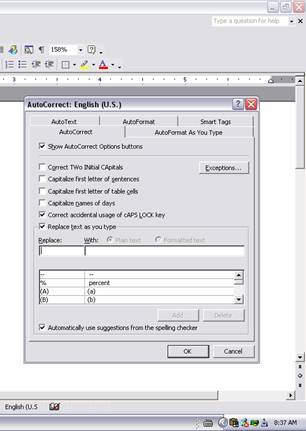
You may wish to keep a file of the words your child has created. If a word is on the Fry list, look it up in the alphabetical list, note the order number, then mark that word. If it is not on the Fry list it is still a word that your child knows and you should save it for future reference. To save a word from here you need to open a Word or WordPad document and select the “komik unifon” font. Before you put any text in this window, however, you should change some of the default options in Word. Click on the “Tools” menu and then select the “AutoCorrect Options” Item. A dialog window will open with tabs at the top. Select the “AutoCorrect” tab. Notice the check boxes at the top. If the top four boxes are checked you will have trouble rendering Unifon correctly. Because Unifon often requires two letters from uppercase slots to appear together, if you have these checked then Word will change some of the letters when you do not want them changed. Nor do you want Word to capitalize the first word of a sentence or proper names for you. Your selections should look like the illustration below.
The text box with the word your child created functions like a document. Copy a word by highlighting it, then pressing <CTRL><C>. Switch to the Word document you opened and paste your word into that document using <CTRL><V>. Then press <Enter> to move to the next line. After each session, save the Word document as “Unifon Words”. At the start of each session, recall that document and scroll to the last entry. Put in today’s date and you’re ready to cut and paste another Unifon session. This way you can keep a running record of all the words your child knows, the number of new words in each session and the dates when all this happened. Use this list to test your child. Can you write this word? Say the word and see if the child remembers how to spell it. How fast was the child’s response? How long did the child think before giving a correct response? Words on this list may be flagged for more study or marked as well known. There are some games to play at this window that may make learning more fun. They will also help you appreciate Unifon. First, Unifon has many more words with only two or three letters. For these games always start with two-letter words and add a letter as your child becomes more proficient. Add a different letter to make a new word. It’s easy to just browse the alphabet until you find a letter that makes a familiar word. Here are a few examples, starting with the letter “M”. mA, mx, mE, mI, mO, mU, mY. Do you recognize all of them? For two-letter words there is a rule in place that will help
you in the teaching process. Notice that if you start with a consonant you will
need to add a vowel. If you start with a
vowel you must add a consonant. iK,
id, if, ik (a fish disease), il,
in, it, iz. Don’t worry if your child does not recognize some words.
Trust me, they will know a lot. In fact they will probably recognize some words
that you don’t want them to recognize. Be prepared to deal with that situation
at some point. You may also add the first letter instead of the last one. For instance, at, At, xt, Et, it, Ot, qt or az, Ez, iz, Iz, oz, Oz, Yz, Uz. When you do three-letter words you can play the same games, with a new option. Here you can add a letter in the middle. For instance, kat, kAt, kxt, kit, kIt, kot, kut, kYt. Maybe it’s because I write songs, but one of my favorite games is to make rhymes. In Unifon, since a letter always makes the same sound, words that rhyme will always have the same set of letters at the end. Try these, for starters. bInd, dInd, fInd,
grInd, bidInd, kInd, lInd, mInd, sInd, wInd. bond, fond, pond,
wond. bAst, KAst, fAst, hAst, lAst, pAst, rAst, tAst, wAst. You may, if you wish, type directly in the text box using the Unifon keyboard layout mentioned earlier. In this case the narrator will not speak each letter. When you click okA, however, the narrator will say the word. This window will frustrate you if you try to mix typing with mouse activity. Words you want to keep will disappear if you click on a letter. So if you want to type and use the mouse together, go to the third window. Ah, what’s behind window number three? This is where you will spend most of your time after you learn how to make words. The letters are smaller and the text box will hold more words. In fact, this text box will hold over 65,000 characters, enough to write a short novel.
When you put words together in sentences you need the characters on the right to make the narrator pause. You may also type directly in the text box, but only in Unifon. When you click on a letter it will not erase what is already in the box, so you can mix mouse entry of letters with typing. The text box contents will only go away if you click on the <Erase> button or highlight it and press <backspace>. To see how well your child knows words, do not use the mouse. Type the word and guess how it sounds before pressing <Okay> to hear the narrator say it. To check the spelling of a word (in Unifon), enter the word and press <Okay>. But this window is best for actually writing something in Unifon. Start with short sentences, perhaps a message your child would like to give to a friend or relative. Encourage your child to express his or her thoughts in writing. The idea is to be able to write anything you can say. When that happens your child is ready to make the transition back to standard English. Since Unifon retains 23 of the letters they will read, the transition is relatively painless and rapid. During the transition, Unifon can be helpful, too. On our web site is a tool called a “Converter.” There you may type words in standard English and have them changed to Unifon. When you encounter a word your child cannot pronounce, encourage your child to go to the Unifon site and type that word into the “Converter.” The word will come back in Unifon and the child will know how to pronounce it. Just a final thought to encourage you to join our revolution. There is hope that our terrible spelling system will be replaced by something more logical and useful. Who wouldn’t like that? Our opinion is that Unifon represents the best choice because one letter represents one sound. Think for a moment what could be accomplished by children if they learned to write and read their entire vocabulary by the end of first grade. What if they didn’t have spelling tests to flunk? Learning how to spell could be replaced by something really important, like reading, math or science. With textbooks and literature written in Unifon the shorter learning curve would enable our children to once again excel in both their education and in the game of life.
|
 .
.